GPU External Enclosure Guide for Enhanced Performance
A GPU external enclosure is a device that allows laptop users to boost their graphics performance by connecting an external graphics card to their system. This guide provides information on the top GPU external enclosures available in the market based on user reviews, performance, and features. It discusses the benefits of using an external GPU enclosure and provides recommendations for the best enclosures to enhance your laptop’s graphics capabilities.
Key Takeaways:
- A GPU external enclosure is a device that enhances laptop graphics performance by connecting an external graphics card.
- Using a GPU external enclosure allows for graphics performance upgrades without having to buy a new laptop.
- The top GPU external enclosures include the Razer Core X, EXP GDC TH3P4G3, Razer Core X Chroma, ADT-Link R43SG-TB3, and AKiTiO Node.
- Consider factors such as compatibility, power delivery, design, and price when choosing a GPU external enclosure.
- Follow the manufacturer’s instructions for installation and regularly update drivers and firmware for optimal performance.
Why Use a GPU External Enclosure?
Using a GPU external enclosure provides numerous advantages for laptop users looking to upgrade their graphics performance without purchasing a new laptop. This device offers flexibility by allowing easy upgrades or replacements of external graphics cards. It enables users to enjoy high-end gaming and handle graphics-intensive tasks on their laptops.
The GPU external enclosure connects to the laptop through a Thunderbolt 3 or 4 port, ensuring fast data transfer speeds and seamless performance. With this setup, users can unlock the full potential of their laptops and experience enhanced graphics capabilities.
By incorporating a GPU external enclosure, laptop users can significantly improve their gaming experience and seamlessly handle graphics-intensive tasks. These enclosures provide a cost-effective solution to enhance graphics performance without the need for a completely new laptop. Upgrade your laptop’s graphics capabilities and take your gaming and graphics tasks to the next level with a GPU external enclosure.
Top Picks for GPU External Enclosures
Choosing the right GPU external enclosure is crucial for enhancing your laptop’s graphics performance. Based on user reviews and performance, here are some top picks for the best external GPU enclosures:
| Enclosure | Description |
|---|---|
| Razer Core X | This sleek enclosure supports a wide range of graphics cards and offers excellent performance. |
| EXP GDC TH3P4G3 | An affordable option that provides compatibility with various graphics cards. |
| Razer Core X Chroma | This enclosure features customizable RGB lighting and supports high-end graphics cards. |
| ADT-Link R43SG-TB3 | A budget-friendly enclosure that offers good performance and compatibility with different GPUs. |
| AKiTiO Node | A compact and portable enclosure that delivers great performance and compatibility. |
These top picks cater to different needs and budgets, ensuring that you can find the best external GPU enclosure for your specific requirements.
Factors to Consider When Choosing a GPU External Enclosure
When deciding on a GPU external enclosure, it’s important to take into account a few key factors. These considerations will help you choose the right enclosure that meets your needs and enhances your graphics performance.
- Compatibility: Ensure that the enclosure is fully compatible with your laptop and graphics card. Check the manufacturer’s specifications to verify compatibility and avoid any compatibility issues that may arise.
- Power Delivery: Check the power delivery capabilities of the enclosure to ensure it can provide sufficient power to your graphics card. A thunderbolt 3 external GPU enclosure is recommended for optimal power delivery.
- Design and Size: Consider the design and size of the enclosure to ensure it fits seamlessly into your setup and provides adequate cooling. Look for enclosures with effective cooling systems and a sleek design that complements your workspace.
- Connectivity: Look for enclosures that offer multiple ports for connecting peripherals such as monitors, keyboards, and mice. This will allow you to create a versatile workstation setup.
- Price: Set a budget for your GPU external enclosure and choose one that offers the best value for your money. Consider the features, performance, and durability of the enclosure to make an informed decision.
By considering these factors, you can ensure that you select a GPU external enclosure that seamlessly integrates with your laptop and graphics card, providing a powerful and efficient external graphics card dock for improved performance.
Installation and Setup of GPU External Enclosures
Setting up a GPU external enclosure is an essential step to harness the power of an external graphics card and enhance your laptop’s performance. The installation process may vary depending on the specific enclosure and laptop model, but the general steps are straightforward.
To begin, make sure you have a Thunderbolt 3 or 4 port on your laptop, as these are commonly used for connecting the enclosure. Once you have confirmed compatibility, follow these steps:
- Connect the GPU external enclosure to your laptop using a Thunderbolt cable. Ensure a secure connection on both ends.
- Power on the enclosure by connecting it to a power source, following the manufacturer’s instructions.
- Install the necessary drivers for the external graphics card. These can usually be downloaded from the manufacturer’s website.
- After installing the drivers, restart your laptop to complete the setup process.
It is recommended to refer to the manufacturer’s instructions for your specific enclosure and laptop model to ensure a smooth installation process. Following the provided guidelines will help you avoid any potential issues and ensure optimal performance.
Pro Tip: To maximize performance, it is also advisable to update the firmware of your GPU external enclosure. Firmware updates often bring bug fixes, performance improvements, and compatibility enhancements. Check the manufacturer’s website for any available firmware updates and follow the provided instructions to keep your enclosure up to date.
With your GPU external enclosure correctly installed and set up, you can now enjoy the benefits of enhanced graphics performance on your laptop. Whether you’re a gamer, a video editor, or a graphic designer, the external graphics card will unlock your laptop’s potential for faster rendering, smoother gameplay, and improved overall performance.
| Installation Steps | Description |
|---|---|
| Step 1 | Connect the enclosure to your laptop using a Thunderbolt cable. |
| Step 2 | Power on the enclosure by connecting it to a power source. |
| Step 3 | Install the necessary drivers for the external graphics card. |
| Step 4 | Restart your laptop to complete the setup process. |
Performance Boost and Enhancements with GPU External Enclosures
GPU external enclosures offer a remarkable performance boost for laptops, empowering them to handle graphics-intensive tasks with ease. Whether you’re a gaming enthusiast, video editor, or 3D rendering professional, these external enclosures are designed to enhance your laptop’s graphics capabilities and elevate your computing experience.
By harnessing the power of dedicated graphics cards, GPU external enclosures enable laptops to deliver smoother gameplay, faster rendering times, and overall improved performance. With the ability to leverage the latest and most powerful graphics cards in the market, users can unlock the full potential of their laptops, transforming them into high-performance machines.
The flexibility provided by GPU external enclosures is truly remarkable. As newer and more powerful graphics cards are released, users can easily upgrade their external GPU, ensuring that their laptop stays at the cutting edge of technology. This adaptability allows users to stay ahead of the curve and enjoy the latest graphics advancements without the need to invest in an entirely new laptop.

With a GPU external enclosure, your laptop can excel at resource-intensive tasks, handling complex gaming visuals, seamless video editing, and speedy 3D rendering. Whether you’re a professional or a dedicated gamer, this hardware addition will elevate your laptop’s performance and enable you to enjoy a truly immersive computing experience.
Best Practices for Using GPU External Enclosures
To ensure the best performance and longevity of your GPU external enclosure, it is important to follow these best practices:
- Use a high-quality Thunderbolt 3 or 4 cable for optimal data transfer speeds.
- Keep the enclosure and graphics card clean by regularly dusting them.
- Monitor the temperature of the enclosure and graphics card to prevent overheating.
- Keep the enclosure in a well-ventilated area to ensure proper airflow.
- Update the drivers and firmware of the enclosure regularly to benefit from performance improvements and bug fixes.
By adhering to these best practices, you can maximize the performance of your GPU external enclosure and enjoy smooth gaming, faster rendering times, and overall improved graphics capabilities.
Troubleshooting Common Issues with GPU External Enclosures
While GPU external enclosures are a great way to enhance your laptop’s graphics performance, they may occasionally encounter some common issues. Here are a few troubleshooting tips to help you resolve them:
-
Incompatibility with the laptop or graphics card
If you’re experiencing compatibility issues, ensure that your laptop and graphics card are compatible with the enclosure. Check the specifications of both the laptop and the enclosure to ensure they are compatible.
-
Driver and firmware issues
Ensure that you have installed the latest drivers and firmware for both the GPU external enclosure and the graphics card. Visit the manufacturer’s website or use their software for driver updates.
-
Power delivery problems
If you’re facing power delivery issues, check the power supply and cables connected to the GPU external enclosure. Make sure that the power supply is providing enough power to the graphics card, and that the cables are properly connected.
-
Connectivity issues
If the enclosure is not being recognized by the laptop, try disconnecting and reconnecting the Thunderbolt cable between the enclosure and the laptop. You can also try restarting the system to see if that resolves the connectivity issue.
By following these troubleshooting strategies, you can overcome common issues and ensure optimal performance from your GPU external enclosure.
Future Developments and Trends in GPU External Enclosures
GPU external enclosures are constantly evolving to meet the ever-increasing demands of users. As technology advances, manufacturers are striving to bring exciting developments and innovative features to the market. Here are some future trends and advancements to watch out for in the world of GPU external enclosures:
Enhanced Compatibility with a Wider Range of Laptops and Graphics Cards
Manufacturers are focusing on improving the compatibility of GPU external enclosures with different laptop models and graphics cards. The goal is to provide users with a seamless experience regardless of their specific hardware configuration. This increased compatibility will allow more users to take advantage of the benefits offered by external graphics solutions.
Increased Power Delivery Capabilities for Higher-End Graphics Cards
As graphics cards continue to become more powerful, GPU external enclosures are being designed to support higher-end GPUs. This includes enhancing the power delivery capabilities of the enclosures to ensure they can provide sufficient power to drive these high-performance graphics cards. Users will be able to enjoy the full potential of the latest graphics cards without any limitations.
Smaller and More Compact Designs for Greater Portability
Future developments in GPU external enclosures will focus on creating smaller and more compact designs. This will allow users to easily carry their enclosures with them, making it convenient to set up a powerful graphics solution wherever they go. These compact enclosures will offer a perfect balance between performance and portability.
Integration of Advanced Cooling Solutions for Better Thermal Management
Heat dissipation is a significant challenge when using powerful graphics cards in external enclosures. To address this, manufacturers are incorporating advanced cooling solutions into their designs. These cooling solutions, such as improved fan designs and heat sinks, will ensure optimal thermal management, allowing the graphics card to operate at peak performance without overheating.
Integration of Additional Features such as RGB Lighting and I/O Ports
In addition to enhanced performance and functionality, future GPU external enclosures are expected to integrate additional features. This includes RGB lighting options that allow users to customize the aesthetics of their setup. Moreover, enclosures may incorporate additional I/O ports for seamless connectivity with peripheral devices such as monitors, keyboards, and external storage.
As the demand for GPU external enclosures continues to grow, manufacturers are actively working on these future developments to stay ahead of the curve. These advancements aim to enhance compatibility, deliver better performance, provide greater portability, improve thermal management, and offer more features to cater to the evolving needs of users.
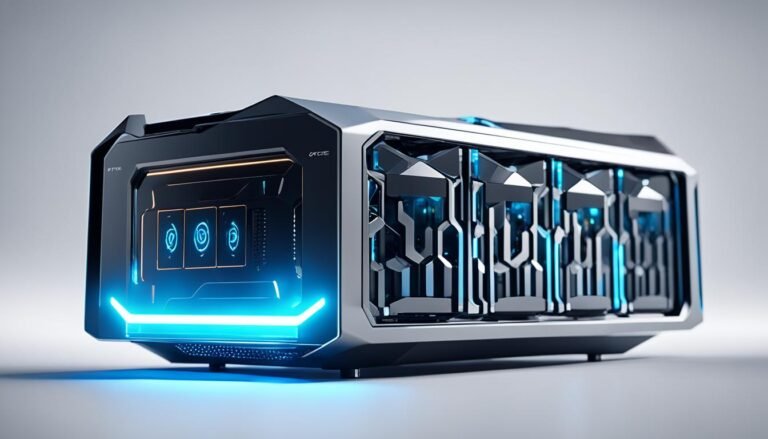
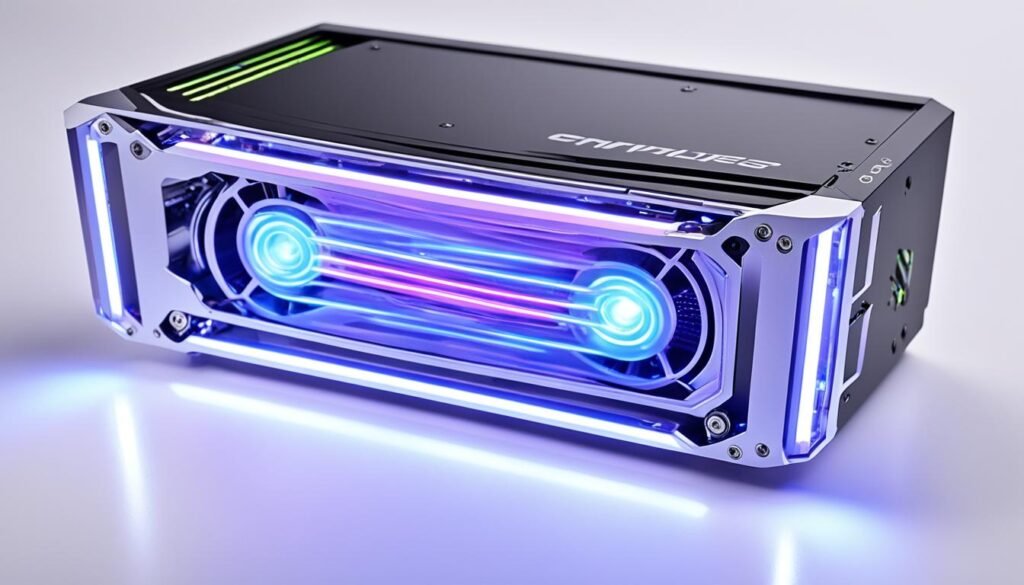
To give you a glimpse of what the future holds, here’s an image of a compact and advanced GPU external enclosure:
| Feature | Description |
|---|---|
| Enhanced Compatibility | Support for a wide range of laptops and graphics cards |
| Increased Power Delivery | Ability to power higher-end graphics cards |
| Compact Design | Portable and space-saving |
| Advanced Cooling | Efficient cooling mechanisms for optimal performance |
| Additional Features | RGB lighting, additional ports for peripherals |
With these future developments on the horizon, the possibilities for GPU external enclosures are truly exciting. We can expect even greater performance, convenience, and versatility in the years to come.
Conclusion
GPU external enclosures offer a convenient and cost-effective solution for enhancing the graphics performance of laptops. By connecting a powerful graphics card to your laptop, you can enjoy high-end gaming, faster rendering times, and overall improved performance. When selecting a GPU external enclosure, it is important to consider factors such as compatibility, power delivery, and design to ensure the best fit for your needs.
To maximize the performance of your GPU external enclosure, it is essential to follow the manufacturer’s instructions for installation and setup. Additionally, regularly updating the drivers and firmware of both the enclosure and graphics card will ensure optimal performance and compatibility. By doing so, you can unlock the full potential of your laptop’s graphics capabilities.
With a wide range of GPU external enclosures available in the market, you have the flexibility to choose the one that suits your requirements and budget. Enhance your laptop’s graphics performance and take your gaming and graphics-intensive tasks to the next level with a reliable and high-quality GPU external enclosure.
FAQ
What is a GPU external enclosure?
A GPU external enclosure is a device that allows laptop users to boost their graphics performance by connecting an external graphics card to their system.
What are the benefits of using a GPU external enclosure?
Using a GPU external enclosure allows laptop users to upgrade their graphics performance without having to buy a new laptop. It also provides flexibility and the ability to easily upgrade or replace the external graphics card.
What are some top picks for GPU external enclosures?
Some top picks for GPU external enclosures include the Razer Core X, EXP GDC TH3P4G3, Razer Core X Chroma, ADT-Link R43SG-TB3, and AKiTiO Node.
What factors should I consider when choosing a GPU external enclosure?
When choosing a GPU external enclosure, factors to consider include compatibility, power delivery capabilities, design and size, connectivity, and price.
How do I install and set up a GPU external enclosure?
The installation and setup process for GPU external enclosures may vary, but generally involves connecting the enclosure to the laptop via a Thunderbolt 3 or 4 port and installing the necessary drivers.
What performance enhancements can I expect with a GPU external enclosure?
A GPU external enclosure can provide a significant performance boost to laptops, allowing them to handle graphics-intensive tasks such as gaming, video editing, and 3D rendering.
What are some best practices for using a GPU external enclosure?
Some best practices for using a GPU external enclosure include using a high-quality Thunderbolt cable, keeping the enclosure and graphics card clean, monitoring temperature, and updating drivers and firmware regularly.
What are some common issues with GPU external enclosures and how can they be resolved?
Common issues with GPU external enclosures include incompatibility, driver and firmware issues, power delivery problems, and connectivity issues. These can often be resolved by ensuring compatibility, installing the latest drivers and firmware, checking power supply and cables, and troubleshooting connections.
What are some future developments and trends in GPU external enclosures?
Future developments and trends in GPU external enclosures include enhanced compatibility, increased power delivery capabilities, smaller and more compact designs, advanced cooling solutions, and additional features such as RGB lighting and I/O ports.
What are some SEO relevant keywords for GPU external enclosures?
SEO relevant keywords for GPU external enclosures include gpu external enclosure, external gpu enclosure, gpu enclosure, external graphics card enclosure, external gpu for laptop, best external gpu enclosure, thunderbolt 3 external gpu enclosure, gpu dock, egpu enclosure, external graphics card dock.