Boost Your PC with External GPU for Improved Graphics Performance
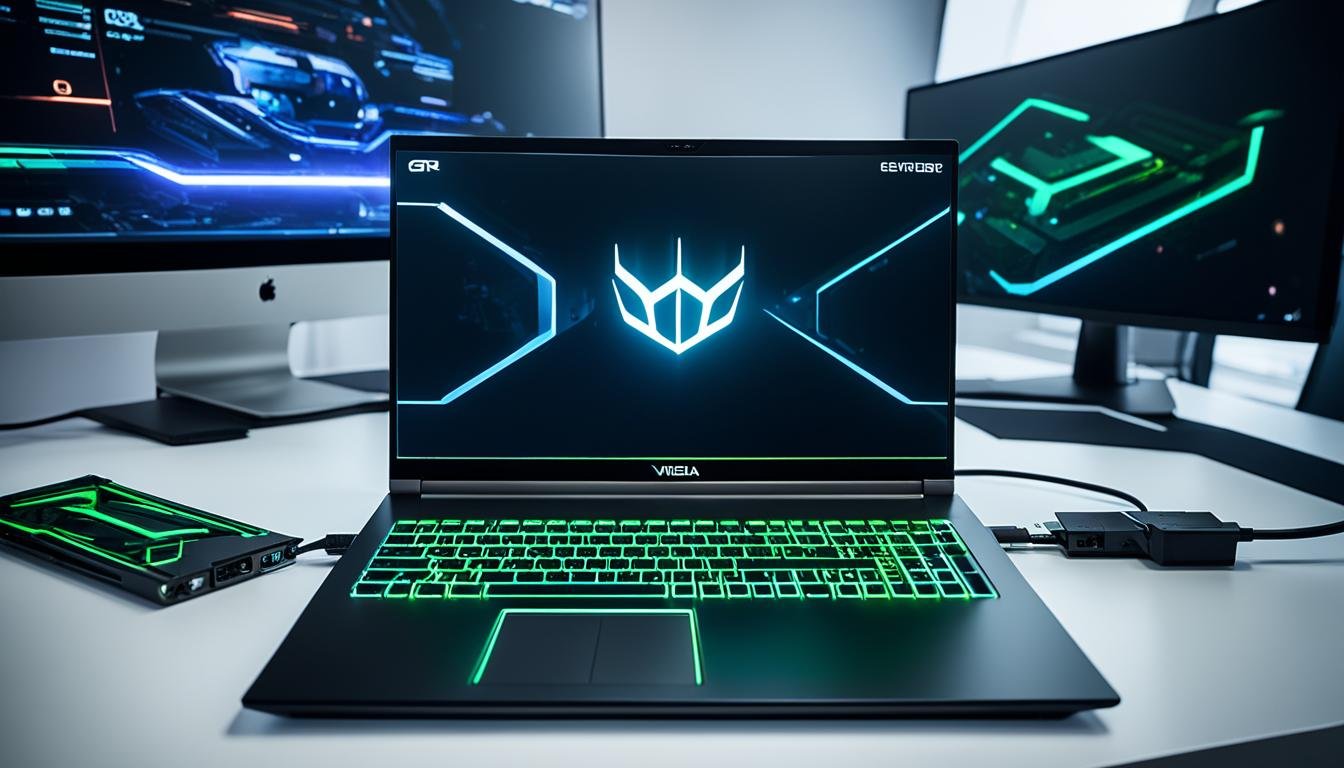
An external GPU, also known as an eGPU, is a device that allows you to connect a high-performance graphics card to your computer externally. It enhances the graphics processing capabilities of your machine, especially if it has a weak built-in graphics card. By connecting an eGPU via a Thunderbolt™ or universal serial bus type-C (USB-C) port, you can experience improved graphics performance for tasks like gaming, video editing, and three-dimensional (3D) rendering.
Key Takeaways:
- An external GPU enhances your computer’s graphics processing capabilities.
- It connects to your computer externally, improving performance for gaming, video editing, and 3D rendering.
- eGPUs are compatible with Thunderbolt™ and USB-C ports.
- Using an eGPU can future-proof your system and allow for easy upgrades.
- Ensure compatibility and check your computer’s specifications before investing in an eGPU.
How Does an External GPU Work?
An external GPU, also known as an eGPU, allows you to enhance the graphics performance of your computer by connecting a dedicated graphics card externally. It works by bypassing the limitations of your computer’s internal graphics card, providing you with a higher level of graphics processing power.
When you connect an external GPU to your computer, it utilizes a high-speed interface like Thunderbolt™ 3 or universal serial bus type-C (USB-C) to establish a direct connection. This allows the external GPU to function independently, offloading the graphics processing tasks from your computer’s internal components.
The external GPU comes with its own power supply, ensuring that it receives the necessary power to handle graphics-intensive tasks. By doing so, it frees up your computer’s internal resources, allowing for improved performance and smoother graphics rendering.
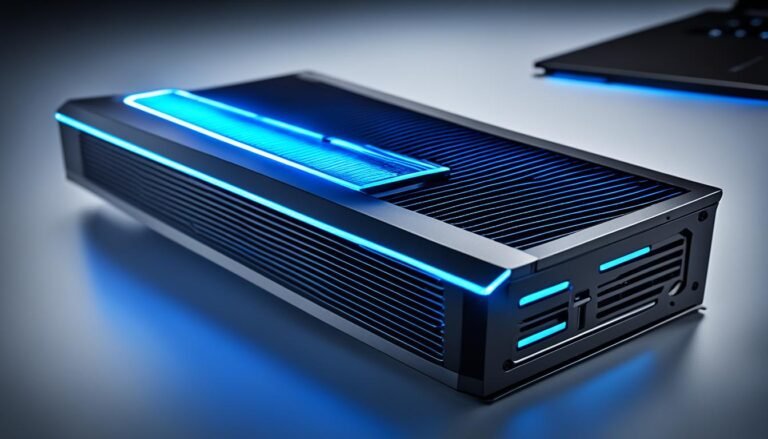
One of the key components of an external GPU setup is the external GPU enclosure. This enclosure houses the graphics card and provides the necessary connections, such as the Thunderbolt™ or USB-C port, to establish a connection with your computer.
The graphics card used in the external GPU enclosure plays a crucial role in determining the overall performance of your system. By choosing a high-quality graphics card, you can ensure that you experience improved graphics performance, whether you’re gaming or working with graphic-intensive applications.
Using an external GPU gives you the flexibility to upgrade your graphics capabilities without having to replace your entire computer. Additionally, it allows for easy compatibility with laptops and provides a straightforward installation process. By connecting an external GPU, you can unlock a new level of graphics performance on your computer.
Comparison of Internal and External GPUs
| Internal GPU | External GPU | |
|---|---|---|
| Installation | Already integrated into the computer | Requires connection to the computer |
| Flexibility | Limited by the computer’s hardware | Can be upgraded or changed easily |
| Performance | Dependent on the computer’s specifications | Can significantly enhance graphics performance |
| Compatibility | Restricted to computer’s internal components | Compatible with various computers |
Why Would I Need an External GPU?
If your computer’s built-in graphics card is unable to handle demanding tasks such as gaming, virtual reality, or resource-intensive software applications, an external GPU can be the solution you need. An external GPU, or eGPU, is capable of significantly enhancing your system’s graphics capabilities, resulting in smoother gameplay, faster rendering, and improved overall performance. This technology can prove particularly beneficial for MacBooks and laptops that lack powerful internal graphics cards.
Here are some key reasons why you might need an external GPU:
- You want to enhance your gaming experience: With an external GPU, you can enjoy playing games at higher settings and achieve smoother frame rates. The increased graphics processing power can make a noticeable difference in your gaming performance.
- You require better graphics for virtual reality (VR): Virtual reality experiences rely heavily on realistic and immersive visuals. An external GPU can provide the necessary graphics capabilities to ensure a smooth and enjoyable VR experience.
- You work with resource-intensive software applications: Tasks such as video editing, 3D rendering, and graphic design often demand a significant amount of graphics processing power. An external GPU can help accelerate these processes and improve efficiency.
- You own a MacBook or laptop with limited graphics capabilities: Many laptops, especially ultra-portable models and certain MacBooks, prioritize portability over graphics performance. Adding an external GPU allows you to compensate for this limitation and unlock the true potential of your machine.
By investing in an external GPU, you can overcome the limitations of your computer’s built-in graphics card and enjoy a more immersive and high-performance computing experience.
Testimonial: The Power of an External GPU
“Once I connected an external GPU to my MacBook, it felt like I had a whole new machine. I could run the latest games smoothly, and video editing became a breeze. The difference was incredible!”
– Mark Johnson, Professional Gamer and Video Editor
| Benefits of an External GPU | Drawbacks of an External GPU |
|---|---|
|
|
Compatibility and Requirements for External GPUs
Not all computers are compatible with external GPUs. Before investing in an external GPU, it’s essential to check your computer’s specifications and compatibility. The requirements for using an eGPU include:
- A Thunderbolt™ 3 or universal serial bus type-C (USB-C) port that supports external graphics.
- An operating system with driver support for external GPUs.
To ensure a smooth experience, make sure your computer meets these requirements. You can also benchmark your external GPU to measure its performance and determine its suitability for your needs.
Compatibility Checklist:
| Compatibility Checklist | Result |
|---|---|
| Your computer has a Thunderbolt™ 3 or USB-C port | ✓ |
| Your computer’s operating system supports external GPUs | ✓ |
| Your computer meets the power requirements of the external GPU | ✓ |
| Your computer has enough available space for the external GPU dock | ✓ |
| Your computer’s CPU and RAM are compatible with the GPU | ✓ |
Make sure to perform a compatibility check to ensure your computer is ready to take advantage of the benefits an external GPU can offer.
“Using an external GPU can transform your computer’s graphics performance. However, not all systems are compatible. It’s crucial to verify your computer’s specifications and ensure compatibility before making a purchase.”
By confirming your computer’s compatibility and requirements, you can unlock the full potential of an external GPU and enjoy enhanced graphics performance for gaming, video editing, and other demanding tasks.
Image: An external GPU connected to a laptop via a Thunderbolt™ 3 port
Using an External GPU with a Laptop
If you’re looking to enhance your laptop’s graphics capabilities for gaming and other intensive tasks, you can consider using an external GPU. By connecting an external GPU to your laptop through a compatible Thunderbolt™ 3 or USB-C port, you can add extra graphics power and significantly improve your gaming and graphics performance.
However, it’s important to note that not all laptops support external GPUs. Before purchasing an external GPU, make sure to check your laptop’s specifications to ensure compatibility. Look for a laptop that has a Thunderbolt™ 3 or USB-C port with support for external graphics to take advantage of this upgrade.
Using an external GPU with a laptop offers numerous benefits. It allows you to enjoy games at higher settings, with smoother frame rates and improved graphics quality. Whether you’re a casual gamer or a professional in need of enhanced graphics performance for video editing or 3D rendering, an external GPU can provide the power boost you need.
Benefits of Using an External GPU with a laptop:
- Improved gaming performance: An external GPU can handle graphics-intensive games more effectively than a laptop’s built-in graphics card, resulting in smoother gameplay and enhanced visual quality.
- Increased graphics capabilities: With an external GPU, you can work with resource-intensive applications, such as video editing software or 3D rendering programs, more efficiently and with reduced rendering times.
- Easier upgrades: Upgrading an external GPU is simpler and more cost-effective than replacing an entire laptop. This allows you to future-proof your system and adapt to changing graphics demands without significant hardware investments.
- Compatibility with multiple computers: External GPUs can be used with multiple laptops, making them a versatile solution for those who work or game on different machines. Simply connect the external GPU to the compatible port, and you’re ready to go.
Before investing in an external GPU for your laptop, ensure that it meets the system requirements and compatibility criteria. Make an informed decision by researching the available options and considering your budget and performance needs.
Having a clear understanding of the benefits and limitations of using an external GPU with a laptop will help you maximize your graphics performance and enjoy a more immersive gaming or computing experience. Now let’s move on to the advantages of using an external GPU.
Advantages of Using an External GPU
Using an external GPU provides numerous advantages, allowing you to harness improved graphics performance and enhance your overall computer experience. Whether you’re a passionate gamer or a professional working with resource-intensive applications, an external GPU can elevate your system’s capabilities to the next level.
Improved Graphics Performance:
By connecting an external GPU to your computer, you can experience significantly enhanced graphics capabilities. It enables you to play games at higher settings, rendering stunning visuals with smoother frame rates. Additionally, working with resource-intensive applications like video editing and 3D rendering becomes much more efficient and enjoyable.
Future-Proofing Your System:
An external GPU offers a future-proof solution for upgrading your graphics performance. Instead of replacing your entire computer, you can simply upgrade the external GPU to keep pace with advancing technology. This flexibility ensures that your system remains capable of handling the latest graphics-intensive demands without significant hardware investments.
Versatility Across Multiple Computers:
Another advantage of using an external GPU is its versatility. You can connect and use the same eGPU with multiple computers, making it a portable and convenient solution for professionals who work across different devices or locations. This flexibility allows you to seamlessly transition from one computer to another without compromising graphics performance.
Straightforward Installation Process:
Installing an external GPU is relatively straightforward, even for those who are not technically inclined. The process generally involves connecting the eGPU to your computer’s Thunderbolt™ or USB-C port and following the manufacturer’s instructions. With user-friendly installation software and driver support, you can quickly set up your external GPU and start enjoying improved graphics performance.
| Advantages of Using an External GPU |
|---|
| Improved Graphics Performance |
| Future-Proofing Your System |
| Versatility Across Multiple Computers |
| Straightforward Installation Process |
Overall, utilizing an external GPU opens up a world of possibilities for enhancing your computer’s graphics performance. From immersive gaming experiences to seamless video editing, this technology empowers you to unleash the full potential of your system. Furthermore, the ability to future-proof your setup and enjoy versatility across multiple computers makes an external GPU a valuable investment for both professionals and enthusiasts.
Multiple External GPUs
In some cases, you can use multiple external GPUs with compatible systems. This setup, known as multi-GPU or SLI/Crossfire, allows you to combine the processing power of multiple graphics cards for even better performance. However, not all systems support this feature, and it requires additional configuration and compatibility checks.
If your system supports multiple external GPUs, you can take advantage of increased graphics processing power for gaming, video editing, and other graphics-intensive tasks. By connecting multiple GPUs, you distribute the workload across multiple cards, allowing for faster rendering, smoother gameplay, and improved overall performance.
Before setting up multiple external GPUs, ensure that your system is compatible and has the necessary connectors, such as Thunderbolt™ 3 ports or USB-C ports. Additionally, check the manufacturer’s guidelines and specifications for specific compatibility requirements.
Setting up multiple external GPUs may involve configuring software settings and adjusting driver settings. It’s important to follow the manufacturer’s instructions and consult online resources or forums for guidance on setting up multi-GPU configurations.
Take into consideration that while multi-GPU configurations can provide a significant performance boost, they also consume more power and may generate more heat. Ensure that your power supply and cooling system can handle the additional power requirements and heat dissipation.
Overall, by utilizing multiple external GPUs, you can supercharge your graphics performance and elevate your gaming and multimedia experiences to new heights.
Disconnecting and Reconnecting the External GPU
Yes, you can disconnect the external GPU from your computer and continue using it without any issues. When the eGPU is disconnected, your computer will automatically switch back to utilizing its internal graphics card. However, it’s essential to follow the correct process to ensure a smooth transition.
To safely disconnect the external GPU, make sure to properly eject it before unplugging it from your computer. This can typically be done by right-clicking on the eGPU icon in your system tray or using the designated software provided by the manufacturer. By ejecting the eGPU, you ensure that all processes and connections are properly terminated, preventing any potential data loss or system errors.
Once you have safely disconnected the external GPU, you can reconnect it whenever you want to enhance your computer’s graphics performance again. Simply plug the eGPU back into the appropriate port, whether it’s a Thunderbolt™ 3 or universal serial bus type-C (USB-C) port, and power it on. Your computer will recognize the eGPU and start utilizing it for graphics-intensive tasks.
Note: It’s crucial to mention that before disconnecting or reconnecting the external GPU, it’s recommended to close any software or applications that are currently using the eGPU. This helps prevent any potential conflicts or issues when switching between the internal and external graphics cards.
Benefits of Disconnecting and Reconnecting the External GPU
- Flexibility: Disconnecting the external GPU allows you to switch between using the device for enhanced graphics performance and utilizing your computer’s internal graphics card for regular use.
- Portability: If you plan on using your computer on the go, disconnecting the eGPU reduces the overall weight and size of your setup, making it more portable.
- Power Saving: By disconnecting the external GPU when not in use, you can conserve power and extend your laptop’s battery life.
- Ease of Use: Reconnecting the external GPU is a straightforward process that doesn’t require any complex configurations or settings.
Remember to always follow the recommended procedures for disconnecting and reconnecting your external GPU to ensure a seamless transition and optimal performance.
External GPUs with Gaming Consoles
While external GPUs are primarily designed for use with computers, there have been some experimental setups using external GPUs with gaming consoles. However, it’s important to note that this is not officially supported by console models, and it requires advanced technical knowledge and modifications. Additionally, compatibility and performance issues may arise, so it’s not a recommended solution for most console gamers.
If you’re looking to enhance your gaming experience on a console, it’s generally recommended to invest in a gaming-specific console with a powerful built-in graphics card. This ensures optimal compatibility and performance without the need for external modifications. However, if you’re an enthusiast with technical expertise, you can explore the possibilities of connecting an external GPU to your console.
Keep in mind that modifying your console in this way may void the warranty and can potentially lead to unforeseen issues and complications. It’s crucial to thoroughly research and understand the risks involved before attempting to connect an external GPU to your gaming console.
If you’re interested in the technical details of using an external GPU with a gaming console, forums and online communities can provide valuable insights and guidance. Engaging with experienced users who have successfully implemented such setups can help you navigate the intricacies and avoid common pitfalls.
In summary, while external GPUs can offer substantial performance improvements for computers, connecting them to gaming consoles is not a widely supported or recommended practice. If you’re a console gamer, it’s generally advisable to explore other options, such as upgrading to a more powerful console or optimizing your gaming experience through software and settings.
Remember, gaming consoles are designed with specific hardware configurations in mind, and tampering with them can lead to unintended consequences. Prioritize stability, reliability, and official support when it comes to enhancing your gaming experience.
Performance Boost from External GPUs
The performance boost you can expect from using an external GPU depends on various factors, including the graphics card you choose and the tasks you perform. In general, you can experience significant improvements in graphics-intensive activities such as gaming, 3D rendering, and video editing.
- Improved Gaming: External GPUs can greatly enhance your gaming experience by providing higher frame rates, smoother gameplay, and better graphics quality. You’ll be able to play demanding games at higher settings, allowing for more immersive and visually stunning gameplay.
- Faster Rendering: When it comes to tasks like 3D rendering and video editing, an external GPU can significantly reduce rendering times. Complex scenes or high-resolution videos can be processed much more quickly, improving productivity and workflow efficiency.
- Enhanced Graphics Quality: With a more powerful external GPU, you can achieve better overall graphics quality. This means sharper textures, more detailed models, enhanced lighting effects, and improved visual realism in both games and professional applications.
Using an external GPU can be a game-changer for graphics-intensive tasks. Whether you’re a gamer, content creator, or professional designer, the added performance boost from an external GPU can take your work or play to the next level.
If you’re curious to see how an external GPU performs, you can refer to external GPU benchmark tests. These benchmarks provide objective performance measurements and comparisons between different graphics cards and setups.
Take a look at the table below for a simplified example of an external GPU benchmark:
| Graphics Card | Task | Frames per Second (FPS) |
|---|---|---|
| NVIDIA GeForce RTX 2080 | Game A | 120 FPS |
| NVIDIA GeForce RTX 3060 | Game A | 140 FPS |
| NVIDIA GeForce RTX 2080 | Game B | 90 FPS |
| NVIDIA GeForce RTX 3060 | Game B | 110 FPS |
This table provides a simple comparison between two different graphics cards and their performance in two different games. As you can see, the NVIDIA GeForce RTX 3060 generally performs better, offering higher frame rates in both games compared to the NVIDIA GeForce RTX 2080. This demonstrates the potential performance improvements you can expect from an external GPU.
When it comes to using an external GPU with a laptop, the performance boost can be even more significant. Laptops usually come with less powerful internal graphics cards, so adding an external GPU can greatly enhance the graphics capabilities of your portable machine.
Stay Tuned for Section 11: External GPUs for Cryptocurrency Mining
External GPUs for Cryptocurrency Mining
Yes, you can use an external GPU for cryptocurrency mining. Many miners utilize external GPUs to increase their mining power and efficiency. By connecting multiple external GPUs to a single computer, you can create a mining rig that can handle complex cryptographic calculations more effectively. However, it’s important to consider the cost of electricity and the potential wear and tear on the hardware when engaging in cryptocurrency mining.
Conclusion
Despite some limitations and potential performance differences compared to internal GPUs, external GPUs can still be a valuable tool for enhancing graphics performance on laptops and MacBooks. They provide an easy way to upgrade the graphics capabilities of your system, especially for tasks like gaming, video editing, and 3D rendering.
When choosing an external GPU, it’s important to consider compatibility, system requirements, and budget. Not all computers are compatible with external GPUs, so checking your computer’s specifications is crucial. Additionally, you should ensure that your operating system has driver support for external GPUs.
Thorough research is key to finding the best external GPU for your needs. Consider seeking advice from online communities and reading reviews from trusted sources. External GPU docks and enclosures can make installation and use more convenient. By carefully considering all these factors, you can choose the right external GPU that maximizes your graphics performance and enhances your computing experience.
FAQ
How does an external GPU work?
An external GPU connects to your computer through a high-speed interface like Thunderbolt™ or USB-C, providing a dedicated graphics processing unit (GPU) with its own power supply. This allows the GPU to handle graphics-intensive tasks independently, offloading the workload from your computer’s internal components.
Why would I need an external GPU?
You might need an external GPU if your computer’s built-in graphics card is not powerful enough to handle demanding tasks like gaming, virtual reality, or resource-intensive software applications. An external GPU can significantly enhance your system’s graphics capabilities, enabling smoother gameplay, faster rendering, and better overall performance.
What are the compatibility and requirements for external GPUs?
To use an external GPU, your computer needs to have a Thunderbolt™ or USB-C port with support for external graphics. Additionally, the operating system should have driver support for external GPUs. It’s essential to check your computer’s specifications and compatibility before investing in an eGPU. You can also benchmark your external GPU to measure its performance.
Can I use an external GPU with a laptop?
Yes, you can use an external GPU with a laptop, provided that it has a compatible Thunderbolt™ or USB-C port. This allows you to add extra graphics power to your laptop, improving its gaming and graphics performance. However, not all laptops support external GPUs, so make sure to check your laptop’s specifications before purchasing an eGPU.
What are the advantages of using an external GPU?
Using an external GPU offers several advantages. It can significantly improve the graphics capabilities of your computer, allowing you to play games at higher settings or work with resource-intensive applications. It also future-proofs your system, as you can easily upgrade the eGPU without replacing the entire computer. Additionally, an eGPU is versatile and can be used with multiple computers, and the installation process is relatively straightforward.
Can I use multiple external GPUs?
In some cases, you can use multiple external GPUs with compatible systems. This setup, known as multi-GPU or SLI/Crossfire, allows you to combine the processing power of multiple graphics cards for even better performance. However, not all systems support this feature, and it requires additional configuration and compatibility checks.
Can I disconnect and reconnect the external GPU?
Yes, you can disconnect the external GPU and use your computer without it. When the eGPU is disconnected, your computer will revert to using its internal graphics card. It’s important to properly eject the eGPU before disconnecting it to ensure a smooth transition. Reconnecting the eGPU is as simple as plugging it back into the appropriate port and powering it on.
Can I use an external GPU with gaming consoles?
While external GPUs are primarily designed for use with computers, there have been some experimental setups using external GPUs with gaming consoles. However, this is not officially supported by console models and requires advanced technical knowledge and modifications. Additionally, compatibility and performance issues may arise, so it’s not a recommended solution for most console gamers.
What performance boost can I expect from using an external GPU?
The performance boost you can expect from using an external GPU depends on various factors, including the graphics card you choose and the tasks you perform. In general, you can experience significant improvements in graphics-intensive activities such as gaming, 3D rendering, and video editing. Frame rates in games can become smoother, rendering times can be reduced, and overall graphics quality can be enhanced.
Can I use an external GPU for cryptocurrency mining?
Yes, you can use an external GPU for cryptocurrency mining. By connecting multiple external GPUs to a single computer, you can create a mining rig that can handle complex cryptographic calculations more effectively. However, it’s important to consider the cost of electricity and the potential wear and tear on the hardware when engaging in cryptocurrency mining.
External GPUs for laptops and MacBooks
Despite some limitations and potential performance differences compared to internal GPUs, external GPUs can still be a valuable tool for enhancing graphics performance on laptops and MacBooks. They provide an easy way to upgrade the graphics capabilities of your system, especially for tasks like gaming, video editing, and 3D rendering. When choosing an external GPU, it’s important to consider compatibility, system requirements, and budget. Do thorough research and consider seeking advice from online communities to find the best external GPU for your needs.